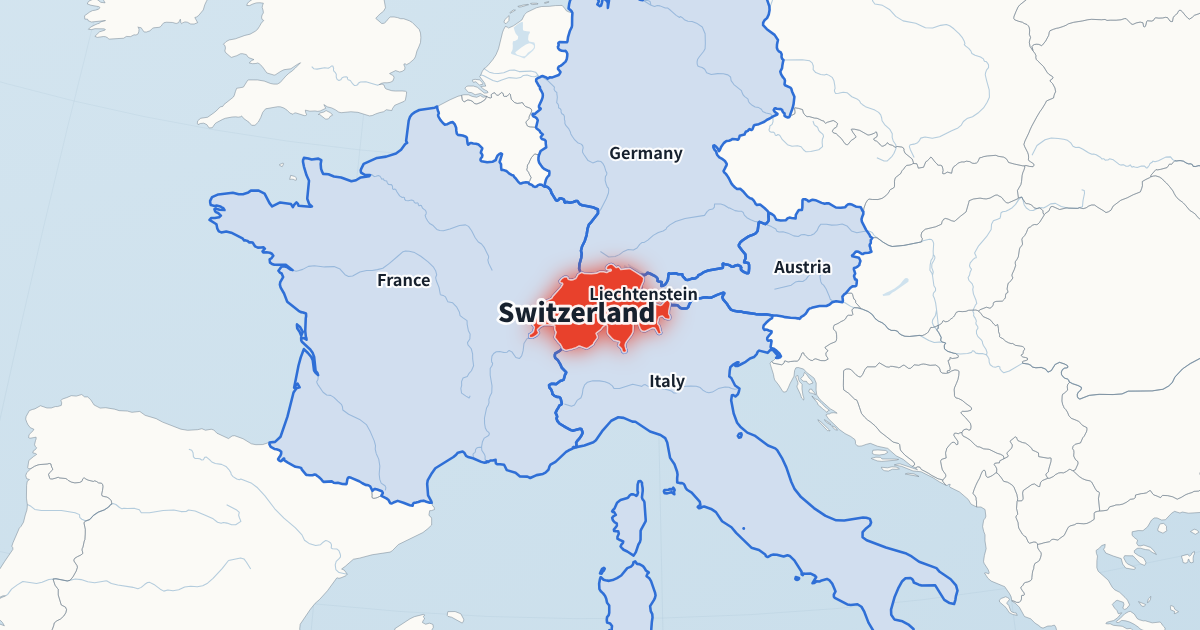
One map animation for YouTube, Shorts and posts
16:9, 9:16 and 1:1 are re-framed, not cropped: the camera is fitted again to the new shape, so the country stays whole and labels stay inside the frame. Make the landscape version for your main video, then switch the shape and export the Short from the same project, with the same timing.
Map shots YouTube explainer videos use most
“Where is it?”
A fly-in from the globe to the country you are talking about, then its neighbours one by one as you name them.
“How did they get there?”
A route from city to city by plane, train, car, boat or on foot.
“Who moved where?”
Campaign arrows with battle markers and dates, for history channels.
Each one is a few clicks here, and the same project exports in every format your channel uses.
Timing a map animation to your YouTube voice-over
Most explainer channels record the voice-over first and cut pictures to it. Load your narration file, press Play and tap Space each time the next country, leg or arrow should appear. The cuts land where you pressed, snapped to whole frames. If you re-record one sentence later, drag that one cut: the others stay where they were, so you do not redo the whole map.
The voice-over is only a guide while you time the map; it stays on your computer and is not part of the exported video, which keeps your audio mix in your editor.
Keep your channel's look
Save your colours, font, map style and place-name language as a channel style. Every new animation can start from it, so a series looks consistent episode after episode. Channels that publish in several languages can switch the place-name language (15 are available) and export the same map once per version.
From export to your YouTube edit
- Exports MP4 (H.264) that opens in Premiere Pro, DaVinci Resolve, Final Cut and CapCut.
- 30 fps exports drop straight into a 30 fps timeline. In a 24 or 25 fps project your editor converts the frame rate; the cuts land within a frame of your voice-over.
- Exports are frame-exact: 15 seconds at 30 fps is 450 frames, so the clip lines up without trimming.
- The video is rendered on your computer, usually in under a minute, with no upload and no queue.
Map animation for YouTube Shorts and Reels
In a 9:16 Short the app's buttons and caption cover the edges and the bottom, so the map keeps a margin on every side, leaves the bottom fifth clear and puts the title near the top. Keep Shorts maps short: one country and two or three neighbours, or a route with four or five stops, reads well in five to eight seconds.
Free exports and the planned Creator plan
720p and 1080p MP4 at 30 fps are free, with a small watermark in the corner that shows the site's address. A paid Creator plan for channels that publish often is planned: no watermark, 60 fps, 4K and a transparent background for layering the map over your own footage. Leave your email in the export dialog to hear when it opens.
How long a map animation for YouTube should be
Most map shots in explainer videos run between 5 and 20 seconds. A fly-in to a country with three neighbours fits in about nine seconds; a route with five stops in about twelve; three campaign arrows in around twenty. If a map needs to run longer, it is often two ideas, and two shorter shots with footage between them keep viewers watching. Type a total length in the editor to fit a map exactly to a gap in your edit.
Planning map shots in a YouTube script
Mark the map moments in your script before you record. A line such as “Bolivia is landlocked, bordered by Brazil, Paraguay, Argentina, Chile and Peru” is one country spotlight with five taps. “From La Paz they drove south to Uyuni” is a route with two stops. Writing it this way keeps each map short and makes the timing obvious when you tap along.
Plan one map shot per idea rather than one long map for the whole video. Short shots between your other footage hold attention better than a single map that runs for a minute.
Place names in other languages
Channels with dubbed audio tracks or separate language channels can switch the place-name language in the Style tab and export the same map again. English, Spanish, Portuguese, French, German, Italian, Turkish, Indonesian, Russian, Hindi, Arabic, Japanese, Korean, Chinese and Vietnamese are available. Titles and captions are your own text, so write them in the language of each version.
Checklist before you upload
- Do the country names on the map match the names your narration uses?
- Are the map's colours the same as in the rest of the episode?
- Does the last frame stay on screen long enough to read?
- For Shorts: is the title clear of the top edge, and is nothing important in the bottom fifth?
Map animation for YouTube FAQ
Can I make a whole video here?
No. This makes the map shots; your footage, voice-over and music go together in your video editor.
What resolution can I export?
720p and 1080p at 30 fps for free. 60 fps and 4K are part of the upcoming paid plan.
Can I put the map over my own footage?
A transparent PNG sequence export is part of the upcoming paid plan.
Do I need After Effects?
No. Everything happens in the browser.
Can I monetise videos that use these map animations?
Yes. You own the videos you make, and the map data is in the public domain.
Will the watermark be a problem on YouTube?
It is a small line of text in a corner. If you need clean footage, the Creator plan will remove it.
Does the map animation for YouTube include music?
No. Exports are silent, so your voice-over and music stay under your control in the edit.
Which editors can open the export?
Any editor that reads MP4 (H.264): Premiere Pro, DaVinci Resolve, Final Cut, CapCut, iMovie and others.
Can I re-use a map in several videos?
Yes. Projects are kept in your browser, so you can open one again, change a few words or the shape, and export a new version.